Keep context current
Maintain accurate information about the work so office and field teams are not relying on outdated private notes.
Colony Core uses the commercial drone job as a shared operating anchor. This public article explains the model and safety boundaries without publishing the exact screen flow, field schema, permissions, or controls.
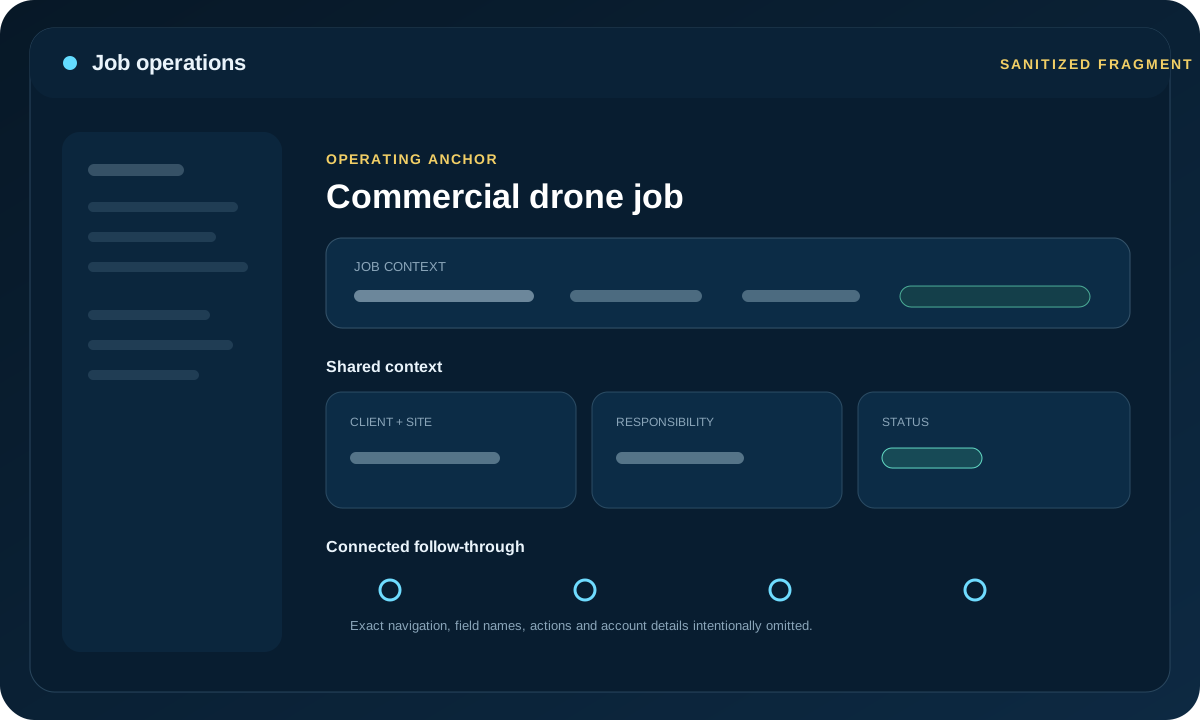
Use the job-management area to keep the team oriented around the same body of work and its current operational context.
Maintain accurate information about the work so office and field teams are not relying on outdated private notes.
Use the enabled workflow to make internal ownership and progress understandable to the people involved.
Software context supports coordination; users remain responsible for operational decisions, client commitments, permissions, and accuracy.
Exact navigation, fields, status logic, imports, notifications, role permissions, automation, and client-facing behavior can evolve or vary by enabled account scope. Publishing a universal click-by-click guide would be both inaccurate and unnecessarily expose implementation detail.
Signed-in users should use the support path provided for their account, or contact Colony Core support for current instructions.
Use your signed-in account or contact support for the current account-specific procedure.